

Setup and manage a call list
Create call lists, add supporters, make calls, and log contact outcomes
Call lists let you and your fellow leaders call supporters efficiently and keep track of contact outcomes. You can:
- Follow up with event RSVPs
- Reach out to supporters at a particular level of engagement
- Divide lists across multiple callers
- Log contact notes consistently
Admins, captains, and vice-captains can create, edit, and use call lists.
Creating a new call list
Open the call lists page
Navigate to your supporter group at Supporter groups > [Your Group Name] and click Call lists, where you will find all past call lists.
Add a call list
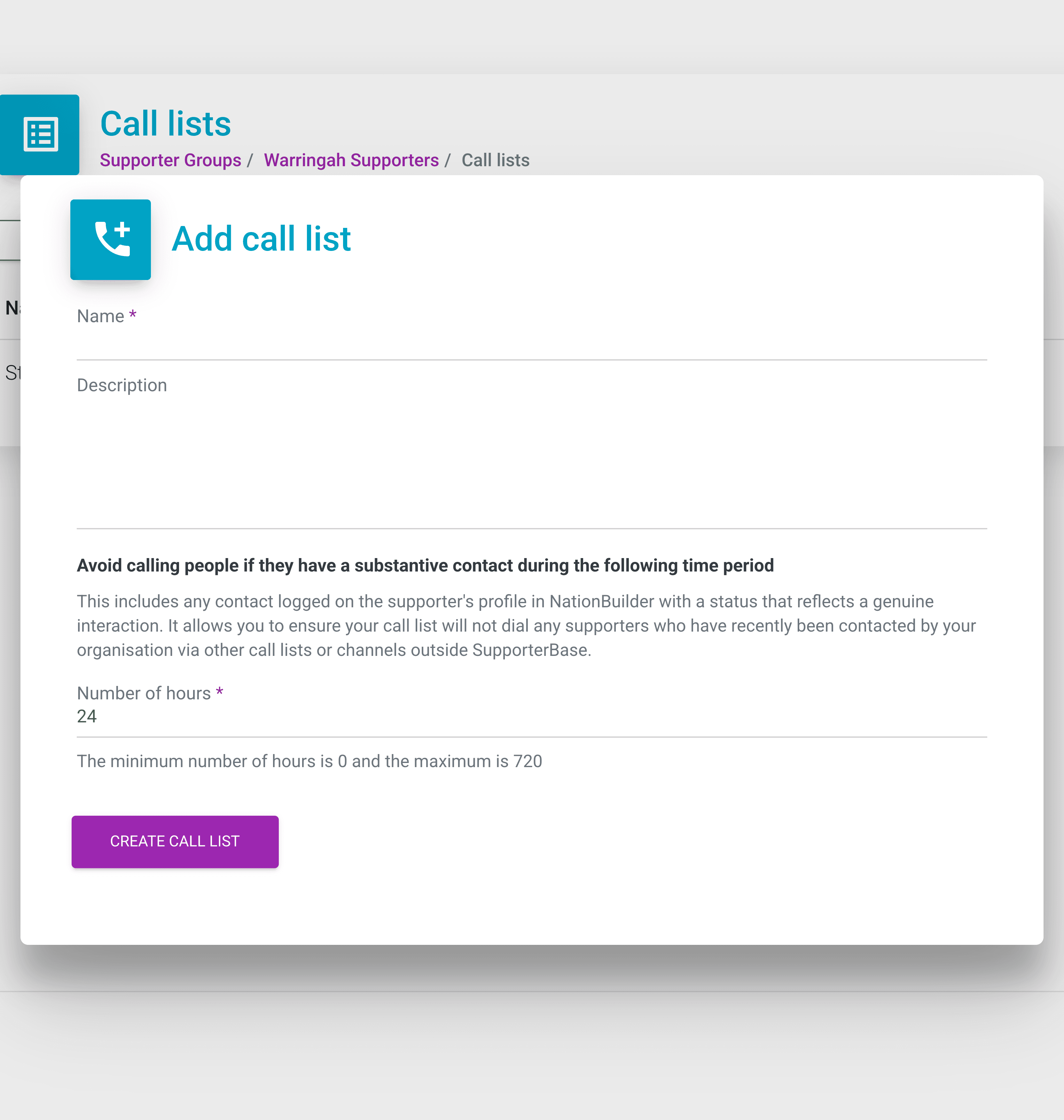
Click Add call list to create a new one.
Name and describe it
Give your list a name using a convention like [Date]: [Purpose], and add an optional description.
Set an exclusion period
Set an exclusion period to prevent supporters being called too often (e.g. exclude anyone contacted in the last 24 hours).
Adding supporters
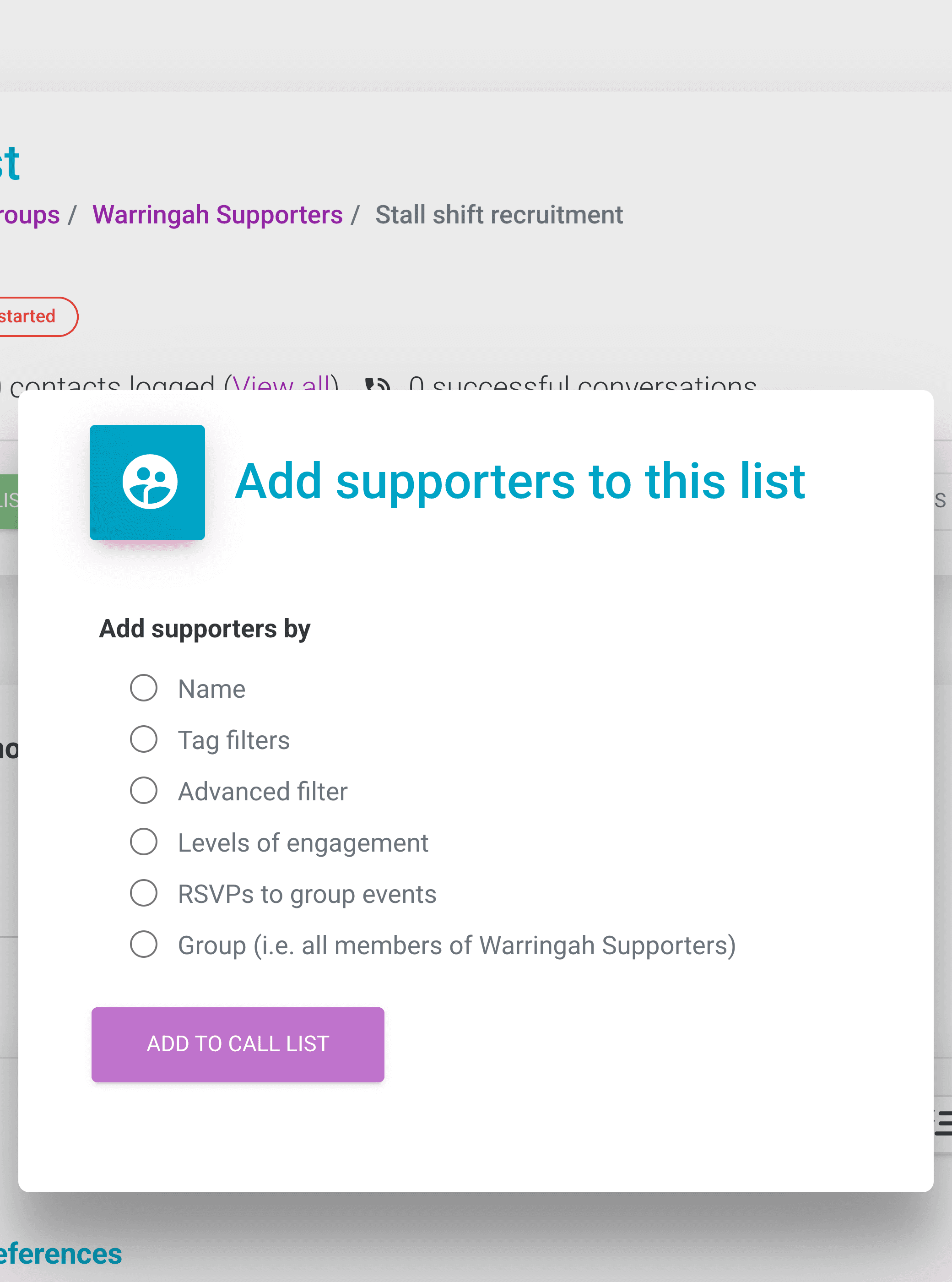
Open the call list, click Add supporters to this list, pick one source under Add supporters by, and click Add to call list.
| Source | What it adds |
|---|---|
| Name | One supporter at a time, searched by name |
| Tag filters | Supporters matching the group's tag filters |
| Advanced filter | Supporters matching one of the group's advanced filters |
| Levels of engagement | Supporters at one of the group's levels of engagement |
| RSVPs to group events | Supporters who RSVP'd to a group event |
| Group | Every member of the group |
Once the call list holds everyone you want to reach, work through it in a calling session. Calling sessions put skip controls, outcome tracking and the supporter's full detail in one place, which keeps a long call list manageable.
Making calls
A call list gives you two ways to start calling, and both are supported.
| Button | What you get |
|---|---|
| Start calling this list | The classic flow, described below |
| Create calling session | A named, durable workspace on the same list. Adds a live queue, progress tracking, manual skip controls, cycle-by-cycle stats, pause/resume, and more than one session per list. See the calling sessions guide for everything you can do inside one, and the skip types for how each skip returns a supporter to the queue |
Start the list
In the call list, click the green Start calling this list button.
Answer your phone
You will receive a call to your mobile number, and pressing any key when prompted connects you to the first supporter.
Log the outcome
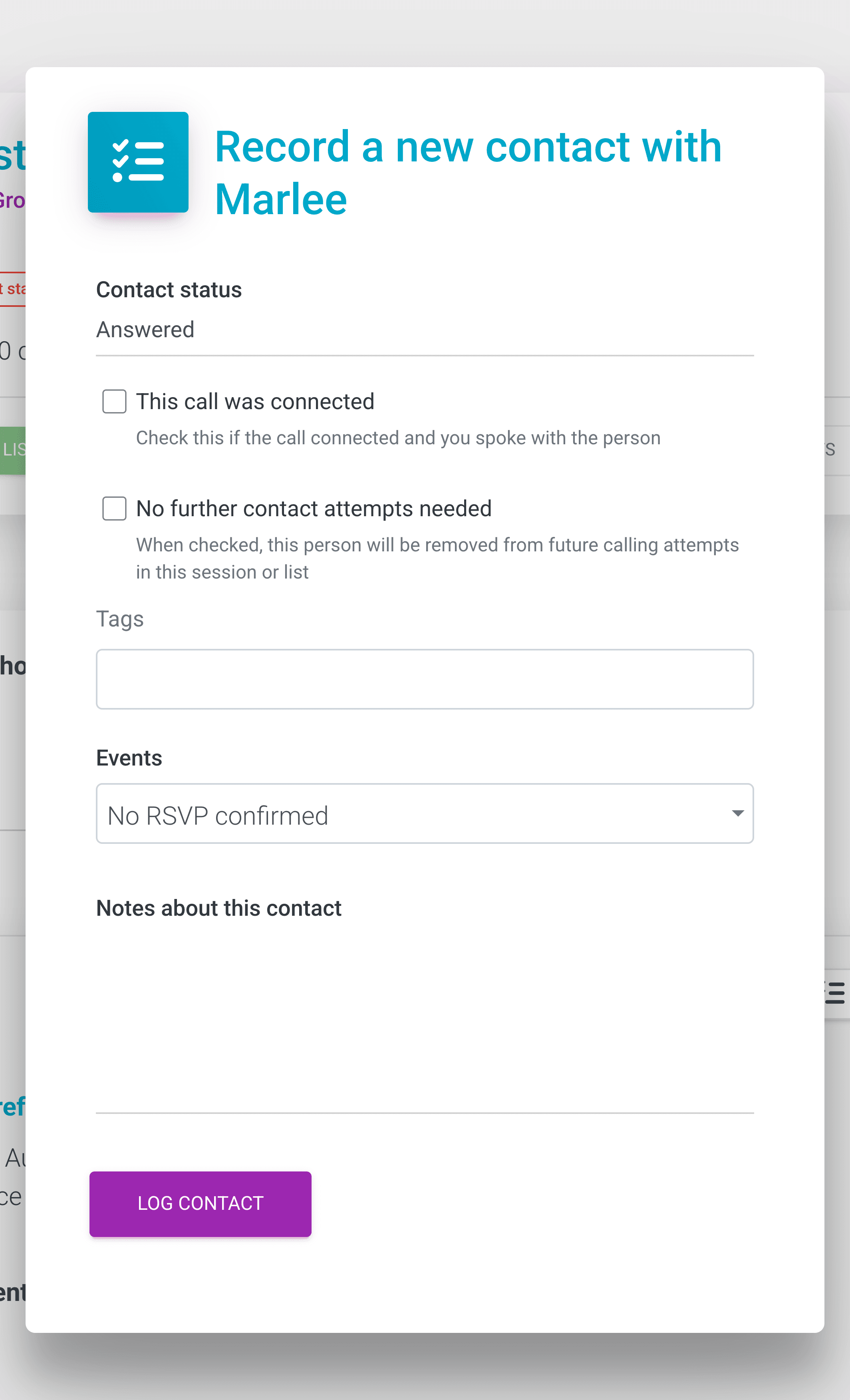
After each call, you will be prompted to log the contact outcome.
Phone charges
- Charges are covered by your organisation's SupporterBase subscription, not your personal account.
- To update your phone number, click your name at the bottom of the left-hand menu, then Edit your profile, and change Mobile.
Logging contacts
For each call, you can record:
| Field | Notes |
|---|---|
| Contact status | Runs from Answered through to No answer |
| Event RSVP | Set under Events |
| Notes about this contact | Free text kept against the contact |
| Tags | Only when an admin has turned on Show all tags on supporter profiles |
| No further contact attempts needed | Calling sessions only. Stops the session dialling them again, and puts a green tick reading Successfully contacted on hover beside their name in the call list |
| Contact outcome | Calling sessions only. Appears and becomes required once No further contact attempts needed is ticked, and is either Successful or Unsuccessful |
If a supporter does not pick up, log the call as No answer and continue, or use the Send SMS button on their supporter card to quickly send a follow-up text before moving on.
Filtering a call list
Use the Filter by dropdown at the top of the supporter list to switch between All, Successfully contacted and Not yet contacted.
Splitting a list across callers
- Open the call list.
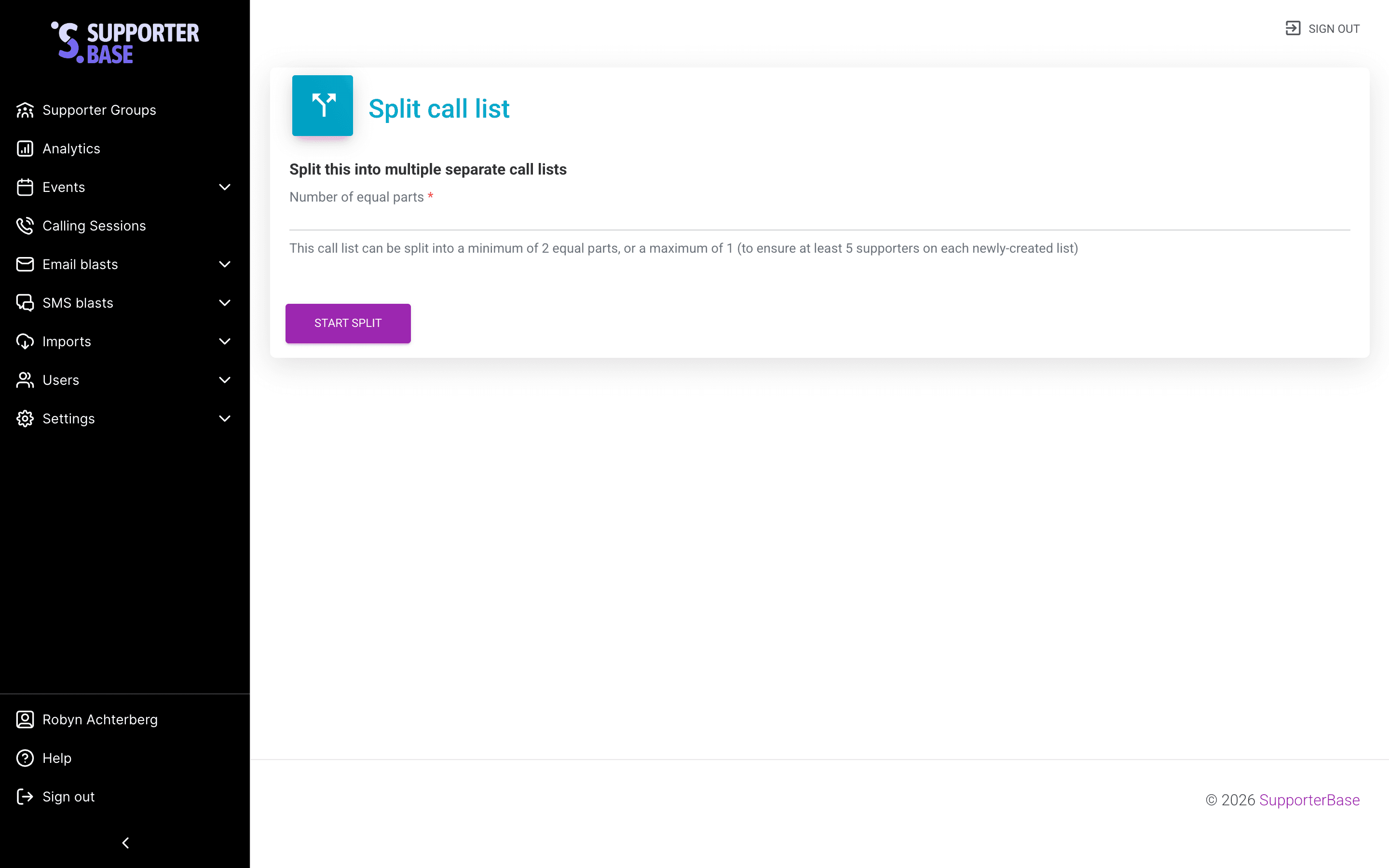
- Click Split this into separate call lists. The button stays disabled until the list holds at least 10 supporters.
- Set Number of equal parts. The minimum is 2, and the maximum is whatever leaves at least 5 supporters on each new list.
- View sublists via the Show sublists button.
- Optionally rename sublists (e.g. with each caller's name).
Reviewing results
Go to your group page and click Analytics, then open the Calls tab.
| Section | What it shows |
|---|---|
| Call statistics | Outbound call count and duration |
| Overall contact statistics | A breakdown of the outcomes logged |
| Call lists | Per-list totals, including Successful contacts |
Adding a voicemail for call-backs
SupporterBase supports a single voicemail which can be set up to play when someone calls your SupporterBase phone number.
- Record a voicemail and save as an .mp4 audio file.
- Email the file to info@supporterbase.com.
- We will upload the file to your Twilio account.
Set a clear purpose for every call list
Set a clear purpose for your call list (e.g. "Confirm event RSVPs" or "Recruit volunteers"), then review the outcomes afterwards and follow up with an email or SMS blast.