

Domain settings
Configure custom domains for email and reply handling
Admins can configure which domain is used for outgoing SupporterBase emails and how replies are processed.
Where to find domain settings
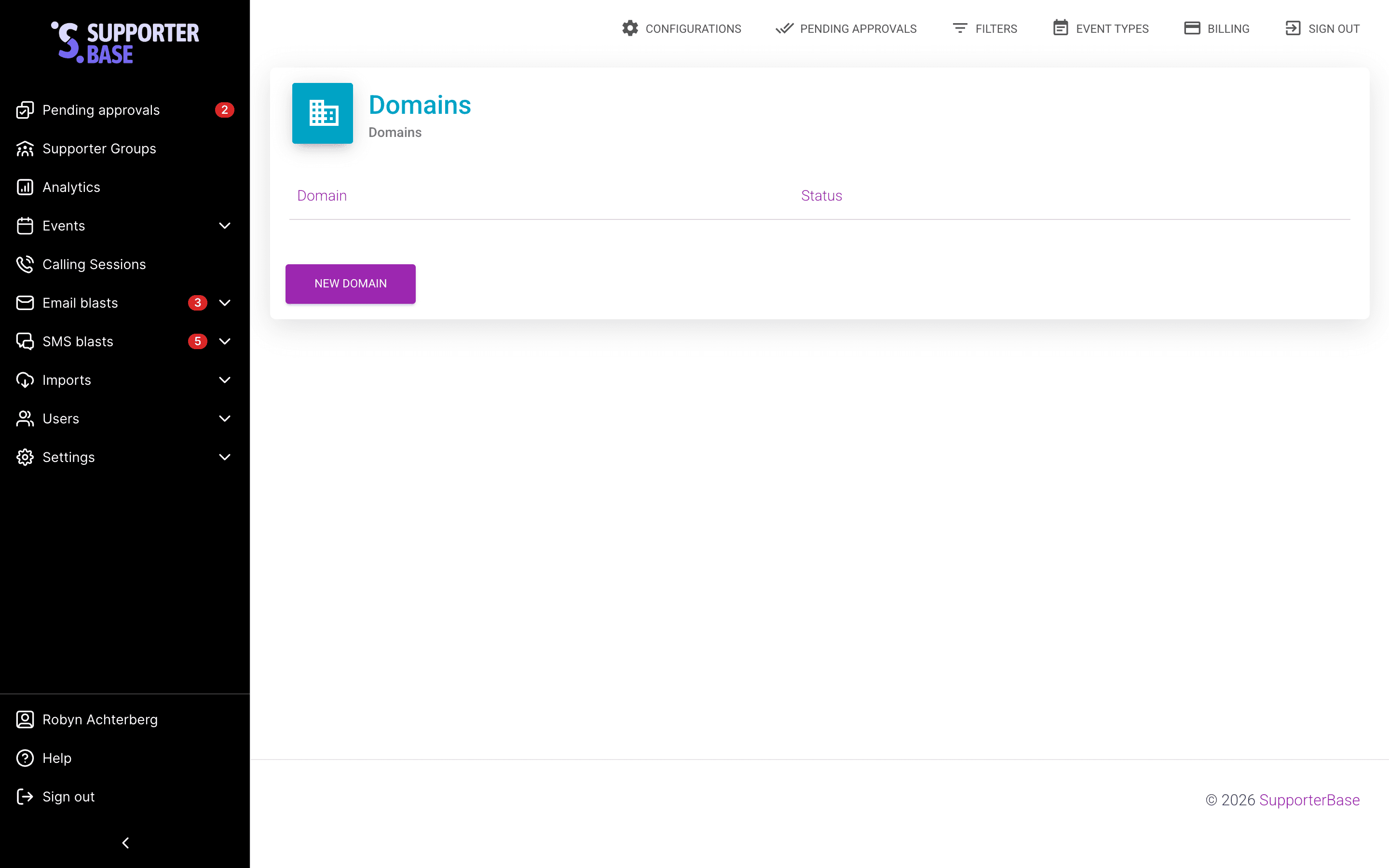
- From the left-hand menu, go to Settings > Domains.
- Click New domain, enter your domain without the
www(for exampleexample.comormail.example.com), then click Create domain. - Click View beside the domain. SupporterBase shows the DNS records you need to add in your domain's zone file.
Verifying your domain
Add the records in your zone file, then click Check domain verification.
Each record in the table shows a Verified or Pending badge, and once all the CNAME records pass, SupporterBase shows All CNAME records below were verified successfully.
The MX row only appears once the mailbox feature is turned on for your SupporterBase.
Enabling inbound replies
Inbound replies take three steps once verification succeeds, and Use this domain to process inbound replies appears only while the mailbox feature is turned on for your SupporterBase and the domain is not already handling inbound replies.
- Add an MX record at
inbox.[YOUR.DOMAIN]pointing tomx.sendgrid.net. Set the priority value to 10. If your DNS host has no priority field, type10 mx.sendgrid.netas the value. - Click Use this domain to process inbound replies.
- Confirm the dialogue, which asks you to confirm you have already configured that MX record.
How inbound replies work
| Setup | Reply-to address on outgoing emails |
|---|---|
| Default | A supporterbase.com subdomain, and it works automatically because we maintain the necessary MX record |
| Your own domain | inbox.[YOUR.DOMAIN], once you add the MX record at inbox.[YOUR.DOMAIN] and turn on Use this domain to process inbound replies |
Replies are processed via SendGrid and displayed in your SupporterBase group's shared mailbox, which is visible to admins and leaders.
Summary
Quick setup checklist
- Add your domain in Settings > Domains.
- Add the provided CNAME + MX records in your DNS zone.
- Verify the domain.
- Enable inbound replies by setting up
inbox.[YOUR.DOMAIN]. - Once enabled, replies appear in the SupporterBase group's shared mailbox under your own domain.